Documentation
Guides, architecture and validation records
The repository is the technical source of truth. This curated guide organizes the essential
workflows, architecture, and diagnostics for developers building Android applications on Linux ARM64.
01Getting Started
Everything needed to install and verify the native ARM64 Android toolchain.
AWhat ADT is & who it is for
Native ARM64 Android SDK build-tools and platform-tools compiled from official AOSP source for Linux glibc, enabling phones, tablets, and ARM64 single-board computers to develop Android apps without an x86_64 host.
Read overview →
BInstallation & setup.sh
Clone the repository and run ./setup.sh install-profile validated to install the tested toolchain bundle (build-tools 35.0.2 + NDK 27.2 + android-36) into your environment.
Installation reference →
CPreflight verification
Run ./setup.sh doctor to verify architecture, paths, JDK availability, and tool integrity before starting builds.
Diagnostics guide →
02Understanding ADT Architecture
How AOSP source code is adapted to native Linux ARM64 without binary emulation.
AOSP native build strategy
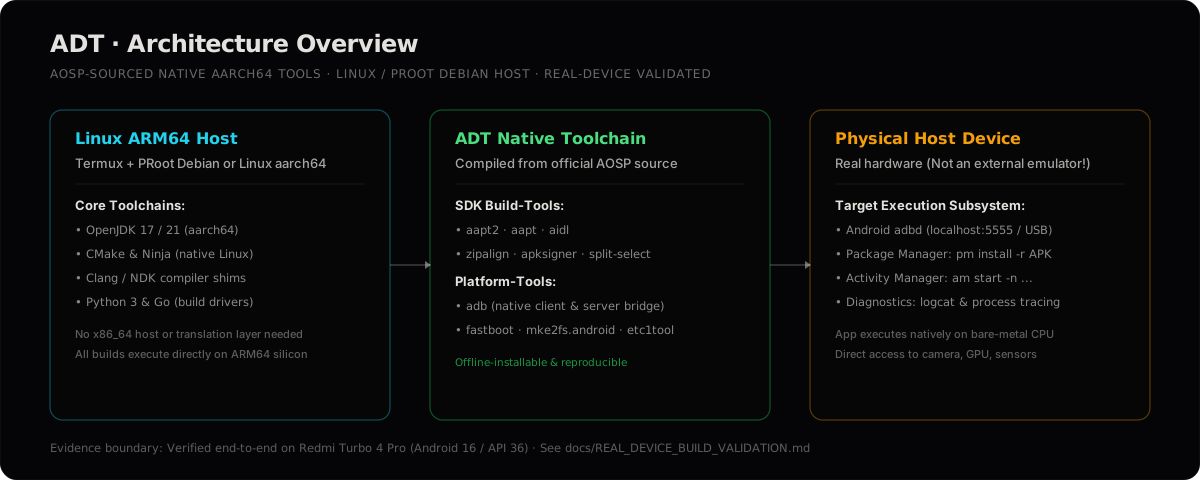
Google distributes Linux SDK host tools only as x86_64 binaries. ADT adapts the source build scripts to compile directly with the host C/C++ compiler targeting Linux/glibc aarch64.
Build internals →
Physical host device vs emulator
Crucial distinction: ADT runs directly on the physical Android host hardware (via Termux + PRoot Debian). The execution target is the real bare-metal phone or tablet, not an external emulator or virtual machine.
Validation topology →
Toolchain packaging
Pre-compiled releases are verified with ELF architecture checks (aarch64) and distributed as self-contained offline-installable tarballs.
Version registry →
03Workflows & Automation Architecture
From source compilation to on-device validation, distinguishing verified tools from future automation.
Build & packaging pipeline
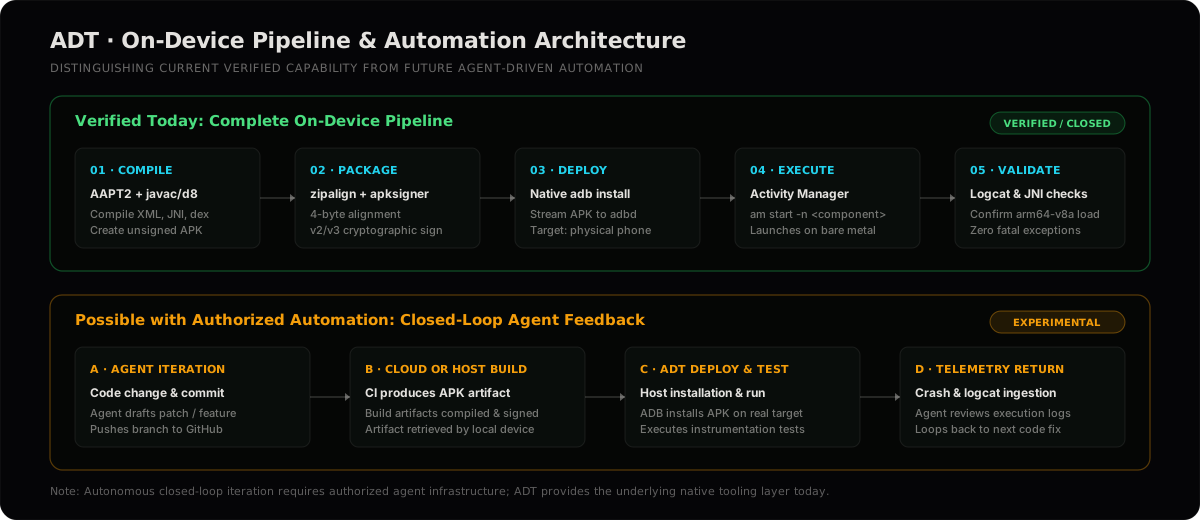
Use aapt2 compile and aapt2 link to generate the binary resources and APK shell, align with zipalign -p 4, and sign cryptographically using apksigner.
Native build guide →
On-device ADB & debugging
Connect to the host device via wireless debugging (adb connect 127.0.0.1:<port>) or local USB bridge, install packages, and stream live diagnostics with adb logcat.
ADB command guide →
Closed-loop automation
Implemented today: Complete manual on-device build, signing, and test pipeline. Architectural potential: Authorized agents modifying code, triggering builds, deploying via ADT, and evaluating logcat feedback.
Device validation record →
04ADT & TERNUX Relationship
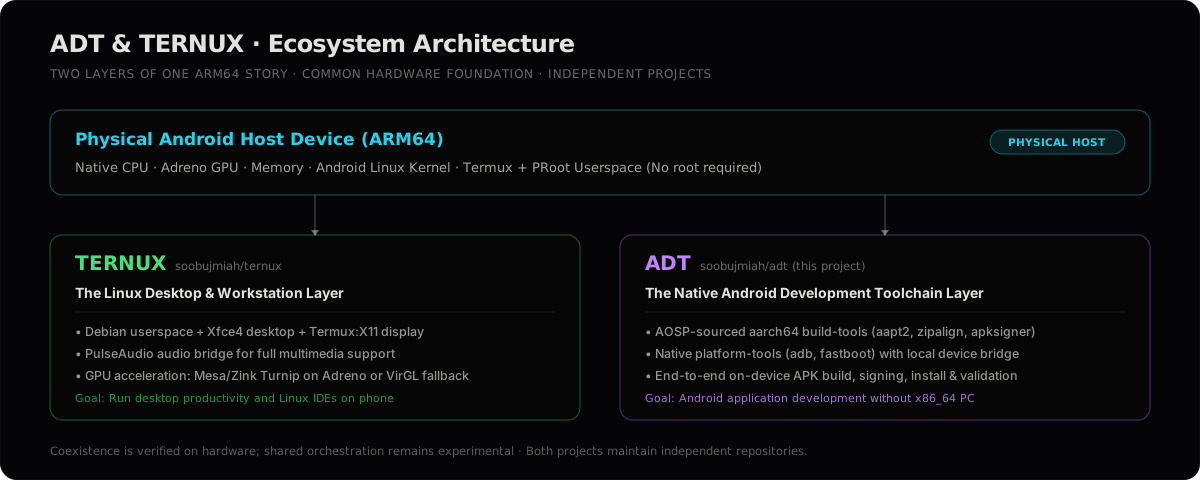
Two independent layers of one physical ARM64 device story.
Distinct project roles
TERNUX delivers the Linux desktop workspace (Debian userspace, Xfce4, X11, Turnip GPU acceleration). ADT delivers the Android development toolchain (AOSP SDK tools, signing, ADB).
TERNUX website →
Verified vs. experimental
Both projects are verified independently on the same physical device foundation (Redmi Turbo 4 Pro, Termux + PRoot Debian). Cross-project workflows coexist in practice but are not tested as a unified package.
Full relationship document →
05Troubleshooting & Diagnostics
Direct guidance for common connection, tool architecture, and permission issues.
Architecture mismatch traps
If a build fails with "No such file or directory" despite the binary being present, check its architecture with file <binary>. ADT's ./setup.sh doctor automatically catches x86_64 traps.
Architecture checks →
Wireless ADB pairing
Remember that Android wireless debugging uses separate ephemeral ports for initial pairing (adb pair) and connection (adb connect). Do not reuse the pairing port for connection.
Step-by-step pairing →
Shizuku operational dependency
Detailed forensic record on how custom Shizuku relays interface with on-device ADB, port 5555 persistence, and crash resilience.
Read forensic report →
06Real-Device Validation Records
Device engineering produces records, not marketing claims. These documents live directly in the repository alongside the tools they validate.
07Source, Licensing & Community
Attribution: Sobuj Miah (@soobujmiah) · Licensed under Apache License 2.0.
Typography: Space Grotesk and JetBrains Mono under SIL Open Font License — see
font licenses.